Introduction
Hypori users can change the theme of their Hypori workspace from the default light colored theme to a dark theme. Some users may prefer their virtual workspace to use dark theme for its improved readability, reduced light emitting from the screen, and reduced battery consumption on some devices. This guide shows how you can go from the default light mode to the dark theme.
You can view a video of this procedure here.
Procedure
Enable Dark Theme
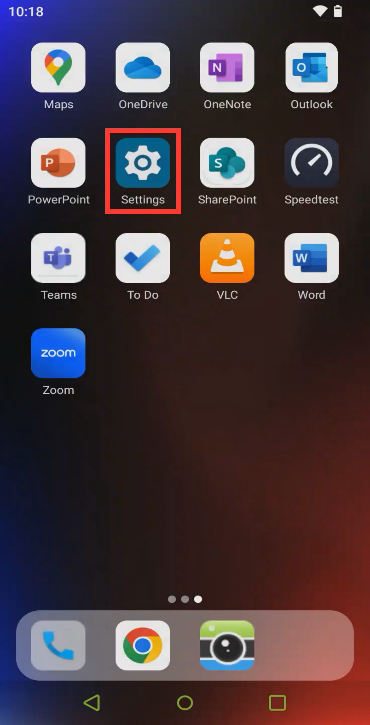
- On the Hypori client home screen, select the Settings app.
|
|
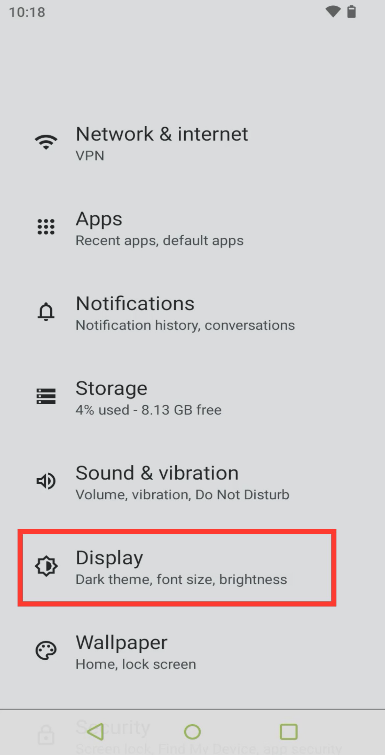
- Then select Display.
|
|
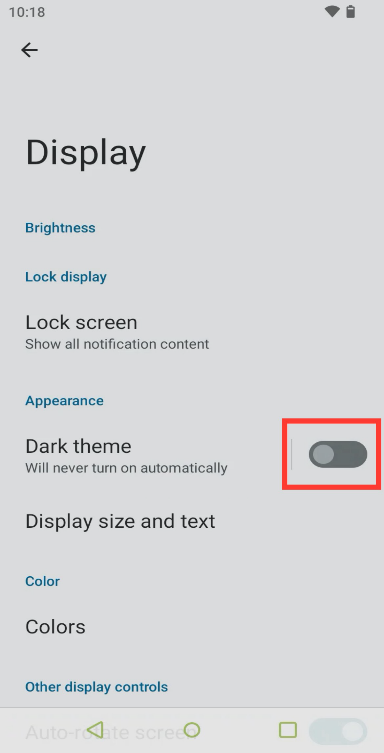
- The Dark theme can be enabled by selecting the switch to the right of the Dark theme menu.
|
|
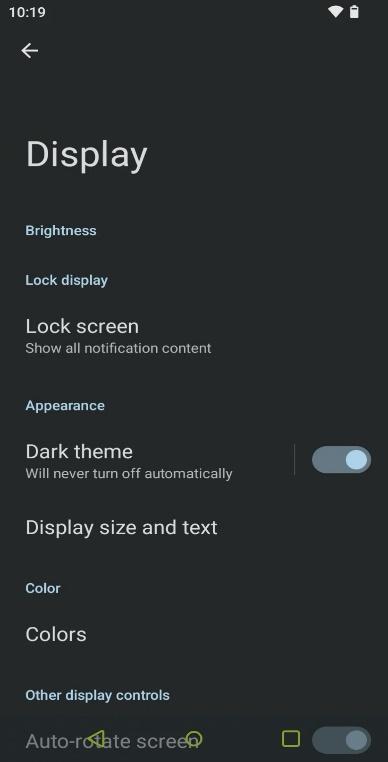
- When enabled, the switch will slide to the right and change color. Your virtual workspace will now display light-colored text against a dark background.
|
|
Set a Dark Theme Schedule
Alternatively, you can select Dark Theme, then schedule to define when the dark theme will automatically turn off and on.
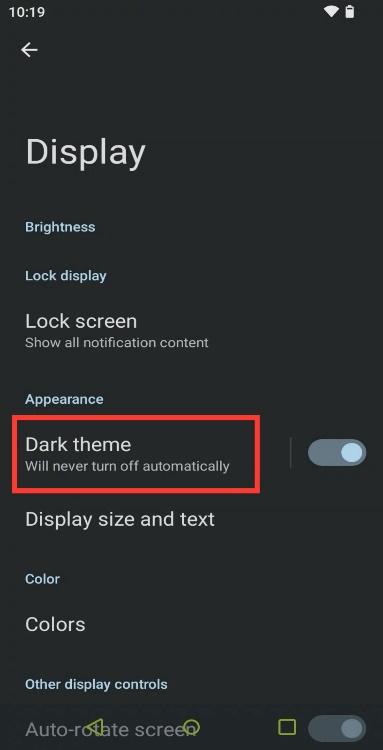
- Within the Display menu, select Dark Theme.
|
|
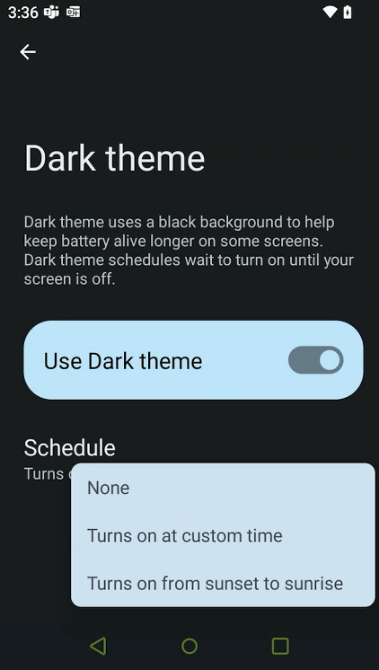
- Select schedule to choose when Dark Theme will be active in your virtual workspace: None, Turns on at custom time, or Turns on from sunset to sunrise.
|
|
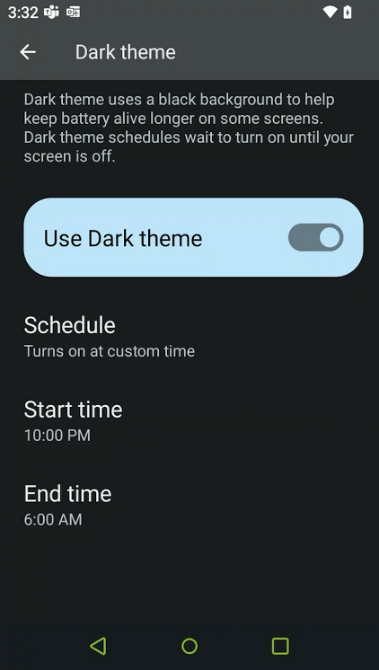
- You can select Turns on at custom time to enter a scheduled start and end time for the dark theme.
|
|
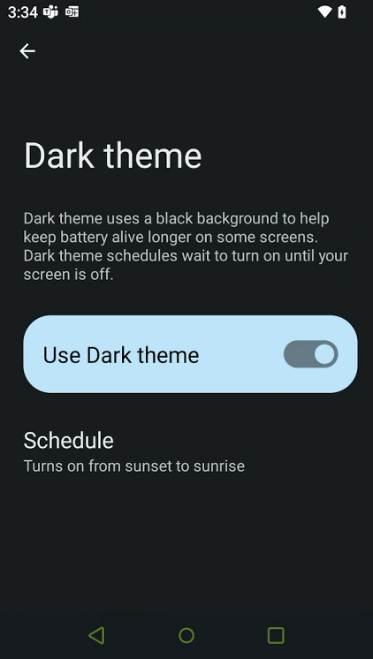
- Or you can choose Turns on from sunset to sunrise to automatically enable and disable Dark theme at those times, based on your location.
|
|

Comments
0 comments
Please sign in to leave a comment.