Introduction
Hypori allows users to create shortcuts for their frequently used applications and application folders on the home screen of their digital workspace.
You can view a video of this procedure here.
Procedure
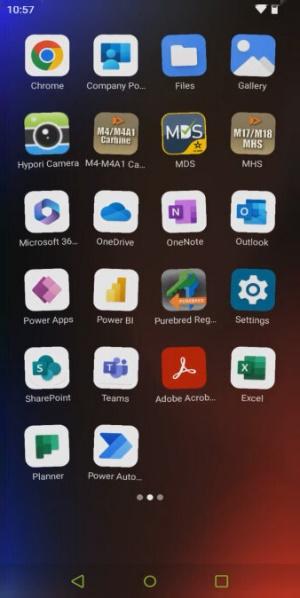
- From the home screen of the Hypori Client, long press any app icon until all of the icons start to shake. This means you are editing how apps are organized on your home screen.
|
|
|
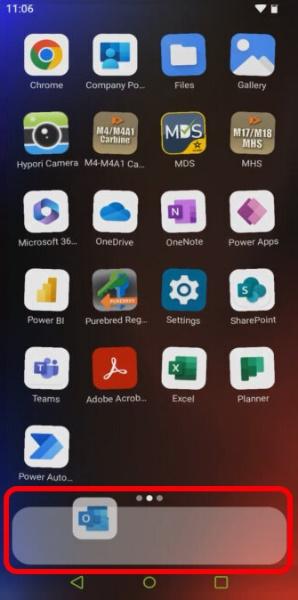
- While the app icons are still shaking, press and hold the app icon that you want to add as a favorite, then drag it to the bottom of the screen. Release the app icon in the white bar that appears.
|
|
|
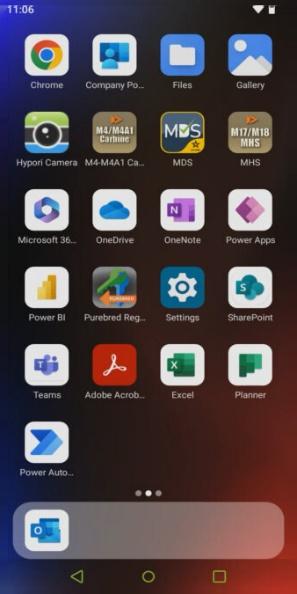
- You can repeat this action for additional apps that you'd like to appear in the Shortcuts Tray. The Shortcuts Tray can accommodate up to four apps or folders at once.
To remove an app from the Shortcuts Tray, touch and drag it out of the Shortcuts Tray back into the app grid.
Touch an empty area of the screen to stop the app icons from shaking, which indicates you’re no longer editing how the icons on your home screen are organized.
|
|

Comments
0 comments
Please sign in to leave a comment.