Introduction
The summary screen provides a convenient place to access search functions, suggested apps, and widgets within your virtual workspace.
You can view a video of these procedures here.
Procedures
Accessing the Summary Screen
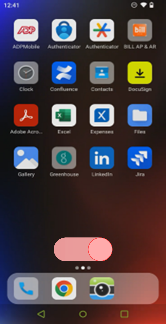
- To access the summary screen, swipe left-to-right on your virtual workspace’s home screen.
|
|
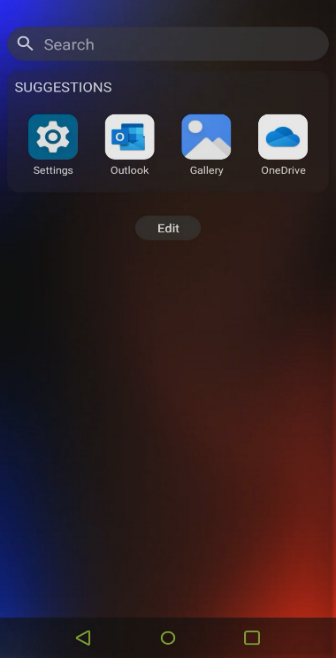
- The summary screen gives you a convenient place to access search functions, suggested frequently visited apps, and widgets.
|
|
Using The Search Function
The Summary screen’s search function allows you to enter a query and receive results from your virtual workspace’s installed apps as well as results from the internet.
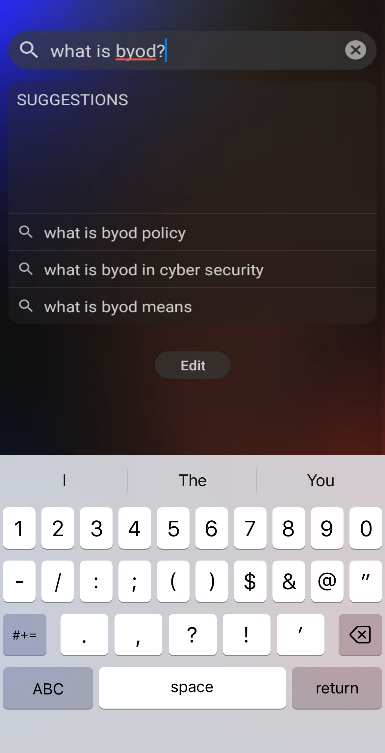
- To use the search function, enter your query into the search field. You can select one of the generated suggestions or select return to view search results.
- If you select an app, the app will open.
|
|
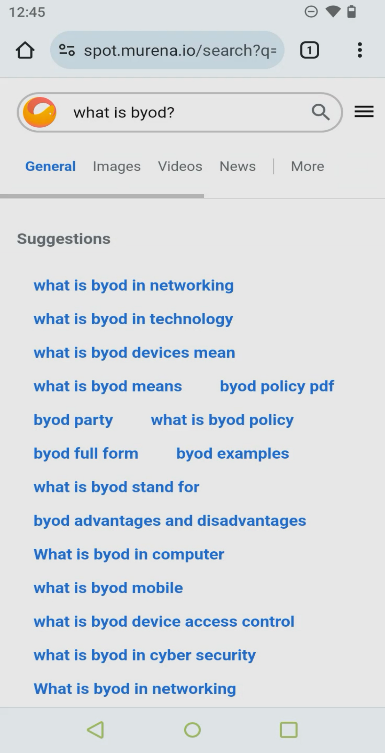
- Select a search result to see more information about it.
|
|
Widgets
Widgets are used to display at-a-glance information from selected apps installed on your Hypori workspace. Any displayed widgets are chosen by the user.
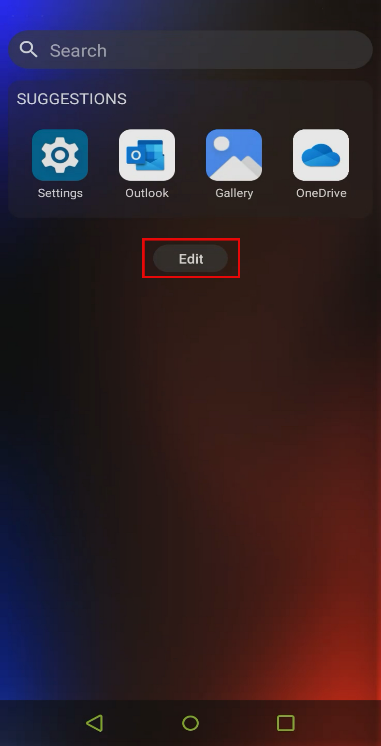
- To add a widget to the summary screen, select edit. This opens the Choose widget menu.
|
|
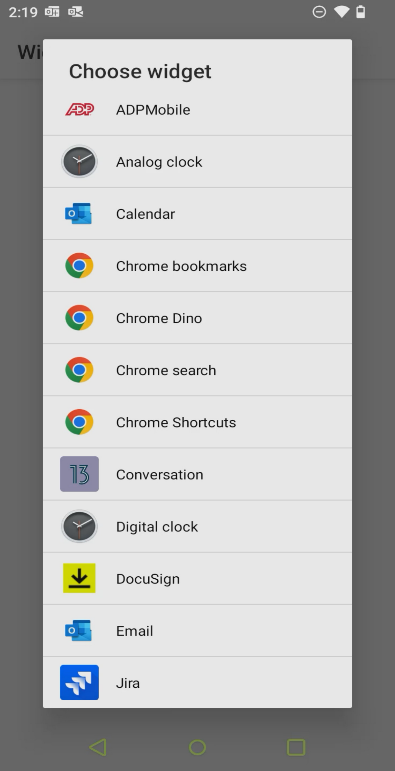
- In the Choose widget menu, select a widget you’d like to appear on the summary screen.
|
|
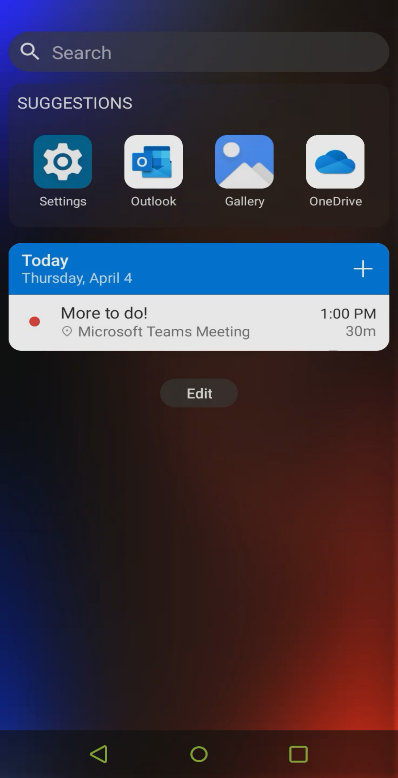
- You can add additional widgets by repeating this process.
|
|
Resizing Widgets
Some widgets can be resized to display more or less information.
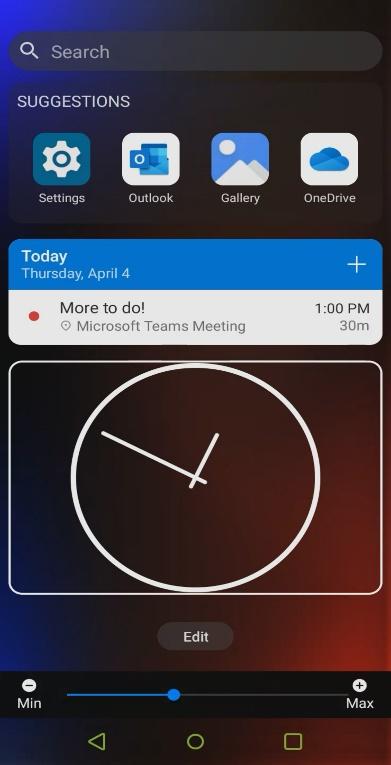
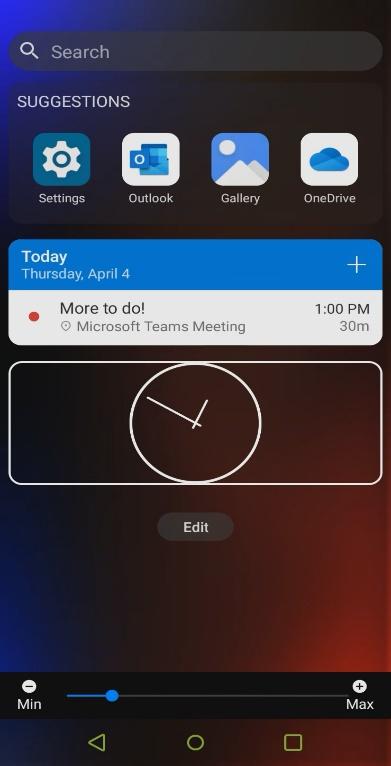
- To resize a widget, long press it until the slider appears at the bottom of the screen.
- Move the slider to the right to increase the size. Move it left to decrease the size.
|
|
- Select an empty area of the screen to save the selected size.
|
|
Deleting Widgets
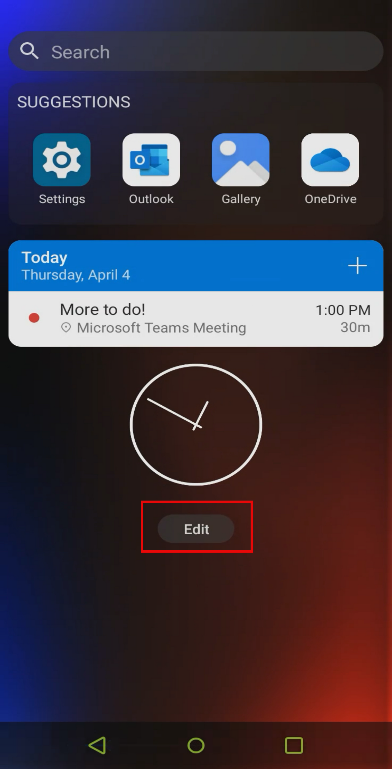
- To remove a widget from the summary screen, select edit to open the widgets menu.
|
|
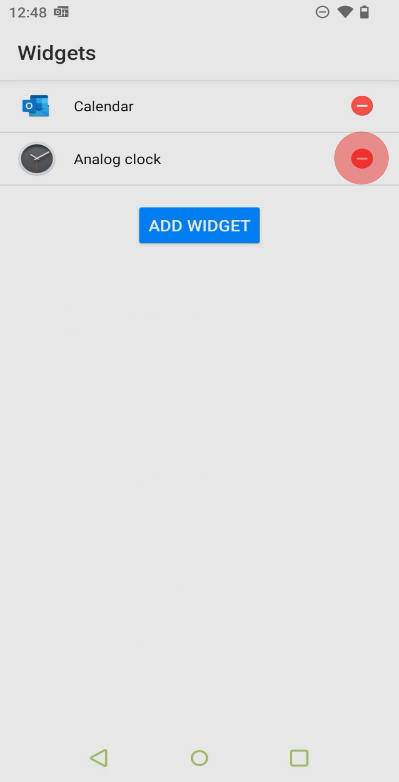
- In the Widgets menu, select the delete icon next to any widgets you no longer want displayed on the summary screen.
|
|
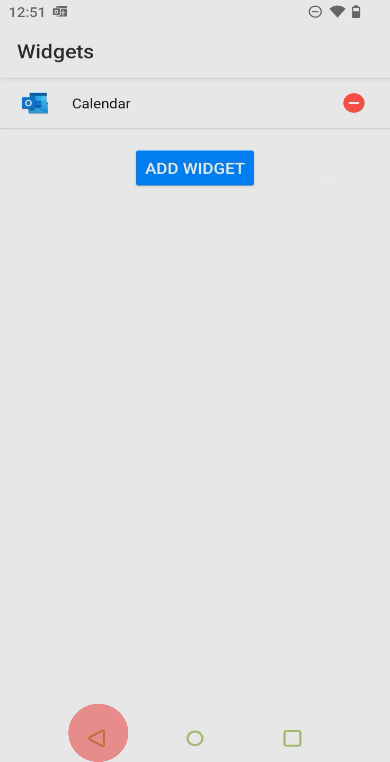
- When you’re finished, select the back button to return to the summary screen to review your changes.
|
|

Comments
0 comments
Please sign in to leave a comment.